Official Downloads · Official Guide 2 ways to get it

Shadowrocket Download for All Platforms

Choose how to get Shadowrocket for your device, then install and open it. Import your existing subscription or server details afterward.

Current version · iPhone / iPad: $2.99 one-time on the App Store; Mac, Windows, Android and Linux versions are free.

Download source
iPhone / iPad: App Store
Other platforms: installers from this site
Two price tiers
iPhone / iPad: $2.99 one-time
Mac / Windows / Android / Linux: free
Developer
Shadow Launch Technology Limited
App ID
932747118

Choose an installer by platform

iPhone / iPad: $2.99 one-time on the App Store; the Mac, Windows, Android and Linux versions are free. The five platform cards below correspond to different ways of getting the app, and the card for your current device is shown first. Automatic device detection helps you find the right card but does not check the processor architecture. For Mac in particular, check About This Mac before choosing an Apple silicon or Intel installer.

Installers for computers and Android are available from this site's /dl/shadowrocket/ path. After downloading, read the installation permission guidance before opening the file. Installation prepares the client but does not create server details; have your existing subscription link or server parameters ready. Installing the app and connecting to a server are separate steps.

iPhone / iPad

$2.99 one-time. Get it from the App Store. iPhone and iPad share one purchase under the same Apple ID; the Mac, Windows, Android and Linux versions are free.

System requirements: Check the App Store page. Review compatibility on the product page before confirming the purchase. The store is determined by the country or region of the account, not directly by the device's current location.

Mac

Free. Supports both Apple silicon and Intel Macs; requires macOS 12 or later. The two installers are for different processor architectures, so choose the matching one.

Open the DMG and drag Shadowrocket to Applications, then launch it from Applications. If macOS displays a warning on first launch, follow the permission steps below. Do not run the app from the disk image long-term.

Not sure which to choose? Open About This Mac and check Chip / Processor. Choose Apple silicon for an Apple M-series chip, or Intel if it shows Intel.

Windows

Free. The installer provided here is a 64-bit x64 executable. Check System type in Settings → System → About to confirm that your device matches the installer architecture.

Save the file and run the installer, then choose an installation location as prompted. If SmartScreen appears, check the download source before following the installation permission steps. For work- or school-managed computers, ask the administrator to confirm installation permissions.

Android

Free. The arm64 APK is suitable for most Android phones and tablets from recent years. For older devices or unusual architectures, check device information first; the Android version alone does not confirm compatibility.

Download using your system browser. If the in-app browser in WeChat cannot start the download, use its menu to open the page in an external browser, then tap the installer again. Grant installation permission only to the browser or file manager performing the installation.

Linux

Free. These installers are for x86_64 devices; amd64 in the deb package refers to the same target architecture as x86_64 here. Confirm your processor architecture first, then choose a package format for your distribution.

Use .deb for Debian / Ubuntu and .rpm for Fedora / openSUSE; other distributions can use AppImage. AppImage requires execute permission. Depending on your distribution, you may also need to install runtime dependencies; changing package formats is not a substitute for checking system errors.
First-time installation and system permissions

The desktop and Android installers are not code-signed, so the first installation or launch may trigger a system warning. The steps below apply only to Shadowrocket files confirmed to have been downloaded from this site. Check your browser's download history and the file location before proceeding. If the source is unknown, the transfer is incomplete, or the file type does not match the platform card, stop and download it again from the corresponding card.

Allowing an app to run does not mean disabling system protection. The location of warnings varies by system version, device management policy, and display language. If an organization policy disables a button, do not keep changing system permissions; contact the device administrator and explain why installation is needed. The paths and commands in the table can be viewed by scrolling horizontally; read each step in full before proceeding.

Platform and warningStepsWhat to check
Windows
“Windows protected your PC”
In the SmartScreen prompt, select “More info,” check the file, then select “Run anyway” and continue with installation. Only proceed with the EXE downloaded from this site. If there is no option to continue, check device management policies; do not disable system protection.
macOS
“Cannot verify developer”
Try opening the app first. Then go to System Settings → Privacy & Security, find the corresponding blocked app, select “Open Anyway,” and confirm. Move the app to Applications first. Confirm opening only for Shadowrocket after verifying its source.
macOS
“Damaged” warning
Confirm the app came from this site and is in Applications, then open Terminal and run:
xattr -cr /Applications/Shadowrocket.app
Reopen the app when the command finishes.
The command clears extended attributes only for this app path. If the error persists, download and install again; do not broaden the command's scope.
Android
Apps from this source not allowed
Follow the system prompt to open Install unknown apps. Enable “Allow from this source” for the browser or file manager used to download the app, then return to the installer. Some manufacturers may label this “Allow installation of unknown apps.” You can revoke the source permission from the same screen after installation.
Linux
AppImage cannot run
In the directory containing the file, grant execute permission to the downloaded file:
chmod +x Shadowrocket-*.AppImage
Then launch it from the file manager or Terminal.
First confirm the pattern matches the intended file in that directory. If the command reports a dependency error, check the runtime environment for your distribution based on the specific error.
Linux
Install deb / rpm
Use the package manager in the download directory. For deb:
sudo apt install ./Shadowrocket-*.deb
For Fedora rpm:
sudo dnf install ./Shadowrocket-*.rpm
For openSUSE rpm:
sudo zypper install ./Shadowrocket-*.rpm
The wildcard should match only the package you intend to install. Administrator privileges are used by the package manager; they are not needed to launch the app routinely.

App Store and account region

This section applies to iPhone / iPad only. The China mainland App Store does not list this app. App Store content is determined by the country or region associated with the Apple ID used for Media & Purchases. Device language, system region, and current network location are separate settings. If you cannot find the app, check the signed-in account and its store region before concluding that your device is incompatible.

This page links to the same Shadowrocket product page throughout. If it says the app is unavailable in your current region, check your account settings rather than repeatedly changing search terms. When the store page is available, verify the developer and compatibility; a similar product name does not prove it is the same app.

How to check your country or region

  1. Open Settings and tap your Apple ID account at the top.
  2. Select Media & Purchases, then View Account.
  3. Open Country/Region to see the current store region.
  4. If you need to change it, use the option on that page and review each requirement shown by Apple.

Names in the interface may vary slightly by system version. Account balance, existing subscriptions, and payment information may affect a region change. Follow Apple's current requirements; not every account can change regions immediately.

After installation, App Store manages subsequent updates. The account used for purchases may differ from other accounts on the device, so confirm that Media & Purchases is signed in with the original purchase account before downloading again or updating. If you have a purchase history issue, check your Purchased list and account status first rather than buying again without checking.

Verify the app and compare official interfaces

Shadowrocket is a closed-source commercial app. For iPhone / iPad, verify it on the App Store product page by checking the developer name, official icon, and app ID—not just the name in search results. For other platforms, use the corresponding platform card on this site; installer addresses should be under this site's /dl/shadowrocket/ path.

  1. Developer: Confirm that the product page lists Shadow Launch Technology Limited, with the full name spelled correctly.
  2. Official icon: Compare it with the blue-and-purple outlined rocket on a white background. Similar colors or names are not enough to verify the app.
  3. App ID: The product ID in this page's App Store link is 932747118; it distinguishes the listing from items with the same or similar names.

The iPhone / iPad version costs $2.99 one-time on the App Store; the Mac, Windows, Android and Linux versions are free. A same-name listing shown as free in the App Store is an imitation; do not confuse it with the free desktop and Android versions offered here. The two ways to get Shadowrocket refer to different platforms, not the same installer from different sources.

Official iPhone / iPad screenshots

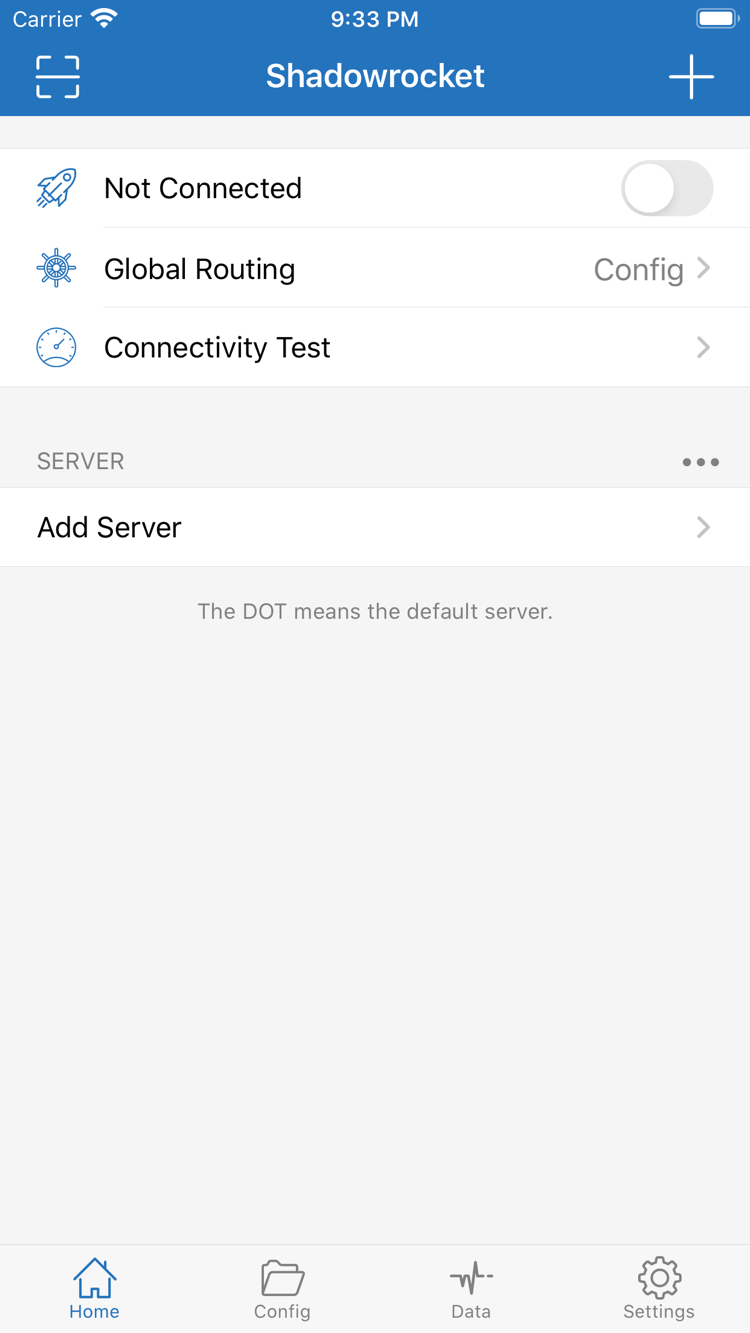
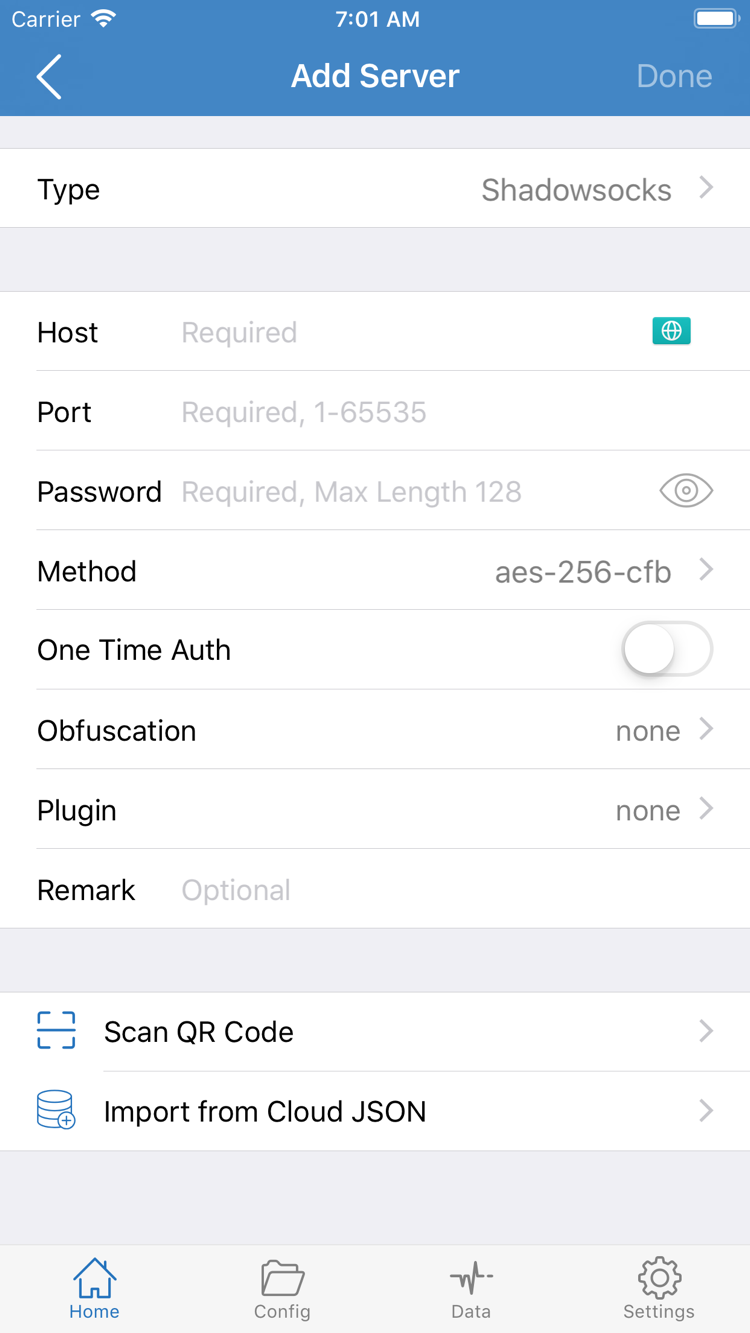
These two screenshots show the English interface uploaded by the developer to the App Store. The Home screen shows Not Connected, Global Routing, Connectivity Test, and the SERVER group; Add Server is for entering existing server details. Interface language and later changes may affect where items appear, so use field names to understand their purpose rather than relying only on screenshot coordinates.

Official Shadowrocket Home screenshot showing Not Connected, Global Routing, Connectivity Test, SERVER, and Add Server
Home: connection control, routing, and server list
Official Shadowrocket Add Server screenshot showing Type, Host, Port, Password, Method, Scan QR Code, and Import from Cloud JSON
Add Server: enter existing server details

The screenshots do not contain usable server details. When adding a server manually, fields such as Type, Host, and Port must match your existing server information; check the parameters after importing with Scan QR Code as well. Seeing Home in the client does not mean a server is available. Connection also depends on the configuration, server status, and current network.

Change devices, reinstall, and restore configuration

iPhone / iPad: find your purchase

iPhone / iPad: one-time $2.99 purchase on the App Store, shared and available to redownload under the same Apple ID. The Mac, Windows, Android and Linux versions are free. After changing devices or uninstalling, do not assume that seeing a purchase button means you must pay again; first check that the current store account is the original purchase account.

  1. Open the App Store and tap the account profile picture.
  2. Go to Purchased and find Shadowrocket in your purchase history.
  3. Tap to download it again. Some system versions first show groups such as Apps before the purchase list.
  4. Open the app after installation, restore your configuration, and confirm system connection permissions if prompted.

Access to the original purchase history may depend on account status and store availability. If the app is missing from the list, check the purchase account and history; do not rely only on having seen its icon on the device before.

Computer and Android: reinstall the matching version

After changing devices, return to this page to download an installer that matches the new device's architecture for Mac, Windows, Android, or Linux. An Intel processor in an old computer does not mean you should choose Intel for a new one; check the architecture of Android devices too. Follow the same steps as for first-time installation, including the installation permission table if needed.

Reinstalling does not migrate data. Before changing devices, save your existing subscription links, configuration files, and necessary server details. These may contain credentials; do not post them publicly or send them to unrelated people. Once the new device works, you can remove the configuration from the old one.

Keep a copy of your configuration before updating too. App Store handles updates for iPhone / iPad; for other platforms, return to this page to get the latest installer. Do not treat an installer's download completion time as the app's release date.

After restoring your configuration, check that the server list is complete, then confirm that Global Routing and the current Config match their intended use. Rule files, subscription content, and purchase records are separate: restoring an app purchase does not automatically restore every rule or confirm that your server credentials are still valid.

Two price tiers and requirements for use

Client pricing varies by platform

The iPhone / iPad version is a one-time App Store purchase. The US storefront price is $2.99; other storefronts show local currency, and the store page determines the amount charged. The Mac (Apple silicon and Intel), Windows, Android, and Linux versions are free. One iPhone / iPad purchase covers both device types under the same Apple ID, with no monthly client fee.

This pricing information covers the Shadowrocket client only. Installer format, device architecture, and distribution package manager do not change a free platform into another purchase tier. If you are unsure which download to choose, check your system and architecture rather than guessing from the filename to determine the price.

Buying the client does not include a service plan

This site does not provide, sell, or recommend servers or subscriptions. All platforms require your existing subscription or server details. The client imports configuration, applies rules, and establishes connections; buying or installing it does not automatically provide a usable server. Check the term, permissions, and parameters for your existing service yourself.

After installation, a sensible order is to import your own details, check the server parameters, select Global Routing, then enable the connection and test access. Connectivity Test can help check reachability, but one test cannot replace complete troubleshooting. For step-by-step instructions, continue to Getting Started; to understand rule matching and how FINAL works, see the Rules Reference.

Download and installation FAQ

Can I use Shadowrocket on a computer or Android phone?

Yes. The Mac (Apple silicon and Intel), Windows, Android and Linux versions are free; download the installer from the corresponding platform card on this site. iPhone / iPad: $2.99 one-time on the App Store. All platforms require your existing subscription or server details.

Which Mac version should I choose: Apple silicon or Intel?

Open About This Mac from the Apple menu. If Chip shows an Apple M-series chip, choose Apple silicon; if Processor shows Intel, choose Intel. Do not guess based on appearance, purchase year, or browser detection.

How do I continue installing when Windows warns about a risk?

First confirm the file came from this site's /dl/shadowrocket/ path. If SmartScreen displays “Windows protected your PC,” select “More info,” check the file, then select “Run anyway.” For organization-managed devices, contact the administrator first; do not disable system protection.

What should I do if Shadowrocket does not appear in the App Store search?

The China mainland App Store does not list this app. Check the country or region for the Apple ID used for Media & Purchases, then verify the listing using the App Store product link on this page. Changing an account region is subject to Apple's requirements; see the Store and Account Region section for the steps.

Do I need to pay again after changing devices or reinstalling?

iPhone / iPad: one-time $2.99 purchase on the App Store; download again from Purchased using the same Apple ID. The Mac, Windows, Android and Linux versions are free; download the relevant installer again after changing devices. Restore your configuration after installing the client.

Can I install Shadowrocket on iPad, and is the purchase shared with iPhone?

Yes. iPhone and iPad use the same App Store product page, and one $2.99 purchase is shared under the same Apple ID. The Mac, Windows, Android and Linux versions are free. Check the App Store page for iPad system requirements. Reinstalling does not automatically restore servers or rules.

Download Shadowrocket for all platforms